
How can rotating Astro residential proxies be integrated via link into Telegram Prime?
Rotation Modes in Astro
Astro provides three IP rotation modes:
What Is “Rotation via Link” and Why Is It Used in Telegram Prime?
This article does not cover proxy usage in Telegram Prime with timer-based rotation. Instead, it focuses on a setup where rotation is not tied to a server timer but is controlled manually.
Rotation via link (URL rotation) is a model where the external IP changes not automatically, but only on request. You receive a special link from Astro’s proxy infrastructure, and the provider issues a new IP for the specific port you purchased. You receive a special link from Astro’s proxy infrastructure, and the provider issues a new IP for the specific port you purchased.
This approach is convenient because the address change becomes controlled rather than random. It can be triggered by events (for example, before starting a new session) instead of relying on frequent timer-based changes.
In practice, this provides:
How can a proxy with rotation via link be added to Telegram Prime?
You’ll be surprised how simple it actually is. Let’s walk through the process step by step using the Astro proxy infrastructure as an example.
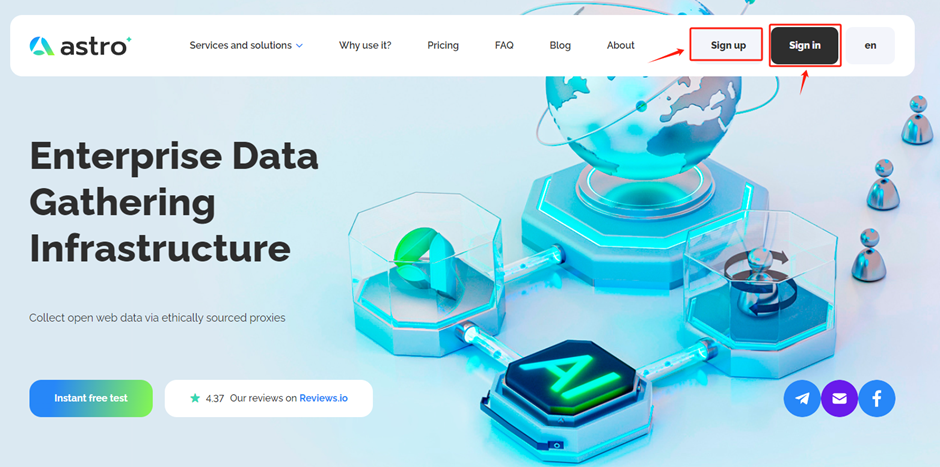
Go to the official Astro website and create an account.
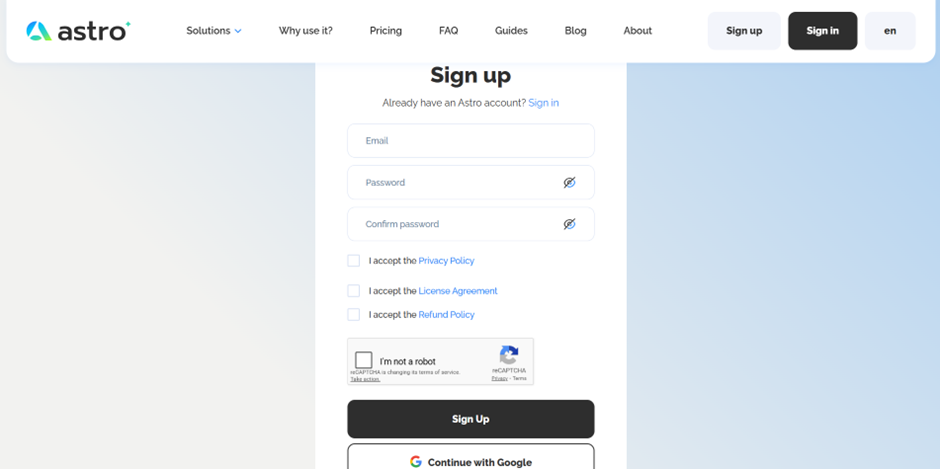
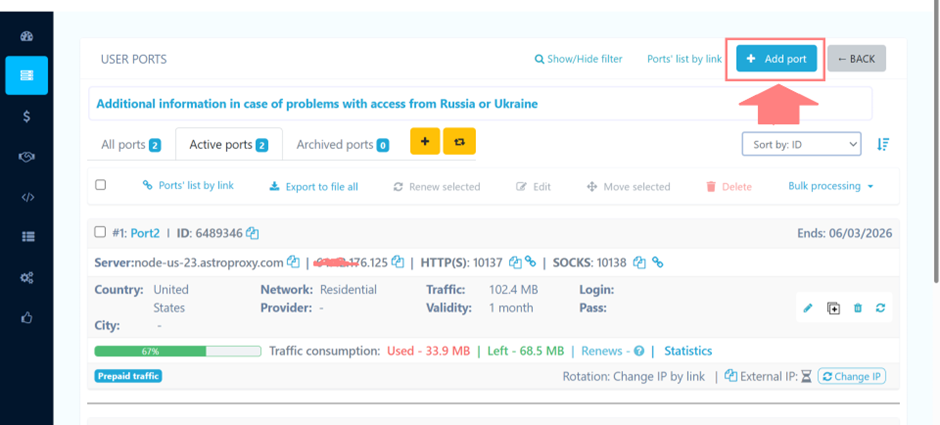
Complete the registration. Log in using the credentials you created for your account. You will be directed to your user dashboard. Follow the instructions in the screenshot below to open the “User Ports” section. There, you can purchase premium residential proxy traffic from Astro:
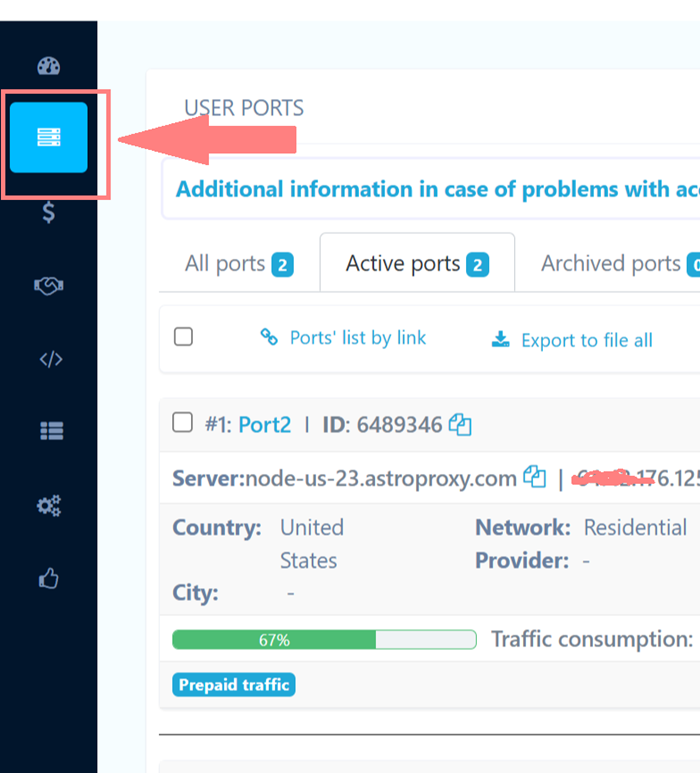
Click “Add port” to proceed to the connection settings.
In the “Count” field, specify the number of threads. This defines the maximum number of concurrent sessions you plan to use.
Under “Network type,” select Residential. Choose the required country (in this case, the United States). Leave City and Operator set to Any unless you have specific geographic or provider requirements.
It is important to understand the logic behind selecting residential proxies. Residential proxies are IP addresses assigned by home internet providers. They offer a high level of trust, stable connections, and accurate geolocation. For Telegram-related tasks, they provide an optimal balance between anonymity and a predictable network profile, especially when working with multiple threads and performing controlled IP rotation.
The “Change external IP address” setting is best left in “Change IP by link” mode. This provides controlled rotation and allows you to change the IP when needed without unnecessary dynamic changes.
Under the pricing plan, select “Prepaid Traffic.” A volume of 1 GB is typically sufficient for a large number of registrations and basic operations. Device profile (Tunnel mode) and additional settings can remain unchanged unless you have specific infrastructure requirements.
You can reduce the proxy costs by up to 45% with bulk order and balance top-up discounts. See the article for details.
Additional options to consider:
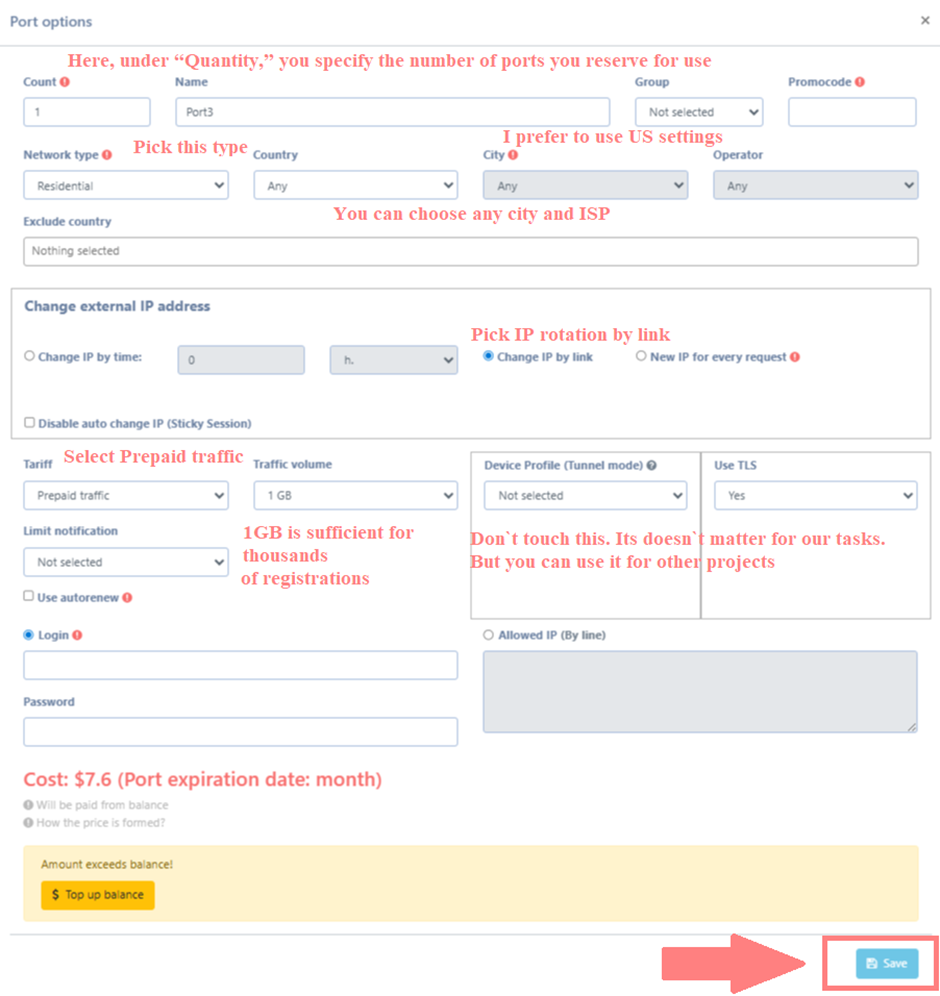
A separate login and password are set for the port. This ensures controlled access and convenient integration with your tools. After entering the parameters, click “Save.”
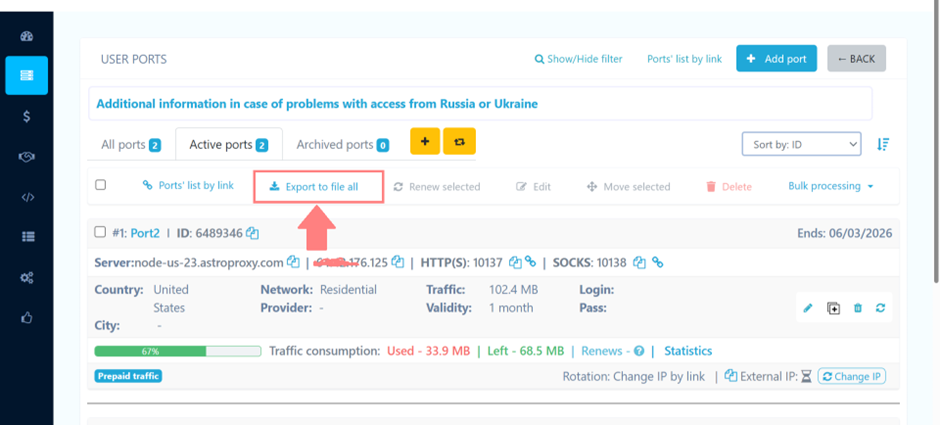
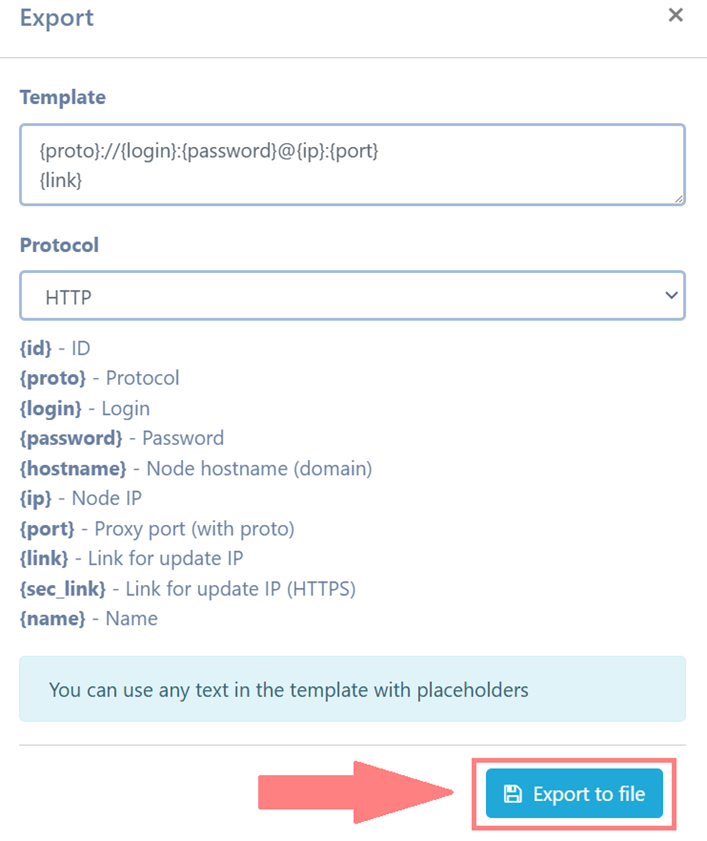
After creating one or more ports, click “Export to file all” to obtain the connection details. The system generates a list of the created ports with access details, including host, port, login, and password, which are used for further integration into the working tool – Telegram Prime.
Once the proxies are configured and exported, go to the upload section and specify the connection parameters in the required format. This is critical for proper system operation and successful authorization through the proxy.
The entry format must be as follows (it is important to follow this exactly):
{ip}:{port}:{login}:{password}:{link}
Enter each parameter in sequence, separated by colons: IP (server address), port (connection port), login and password (authentication credentials), and link (IP rotation URL). Do not change the order or structure. Any deviation can cause connection errors or unstable session behavior.
Once the data is entered correctly, the system will automatically route traffic through the proxies, ensuring stable performance, controlled IP rotation, and centralized network management.
After exporting the data, open Telegram Prime and add the proxies through the import module. Paste the list in the same format in which it was prepared:
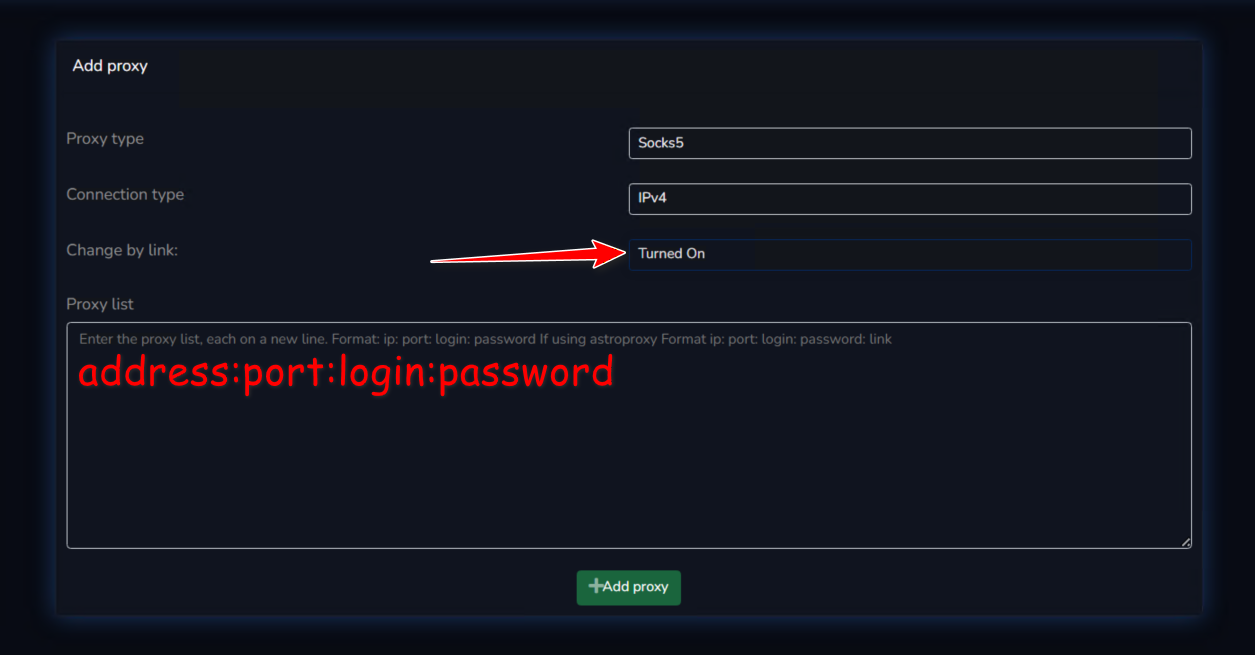
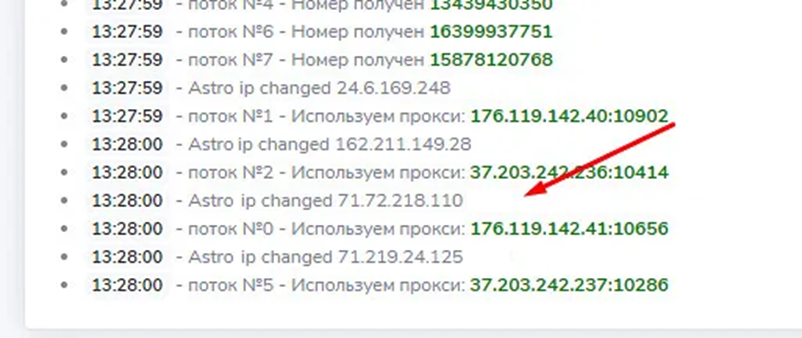
If everything was configured correctly during setup, IP changes will appear in the Telegram Prime logs, as shown in the screenshot. You will see notifications about address changes and the proxy used for each thread. This confirms that IP rotation is working properly, connections are established using the specified parameters, and IP addresses are updated automatically according to the configured settings.
Astro proxy rotation is now available across all major Telegram Prime workflows, not just the auto-registration module.
Telegram Prime now manages the network profile at the system level. This improves session stability, reduces the risk of bans, and makes it easier to scale operations when running multiple threads.
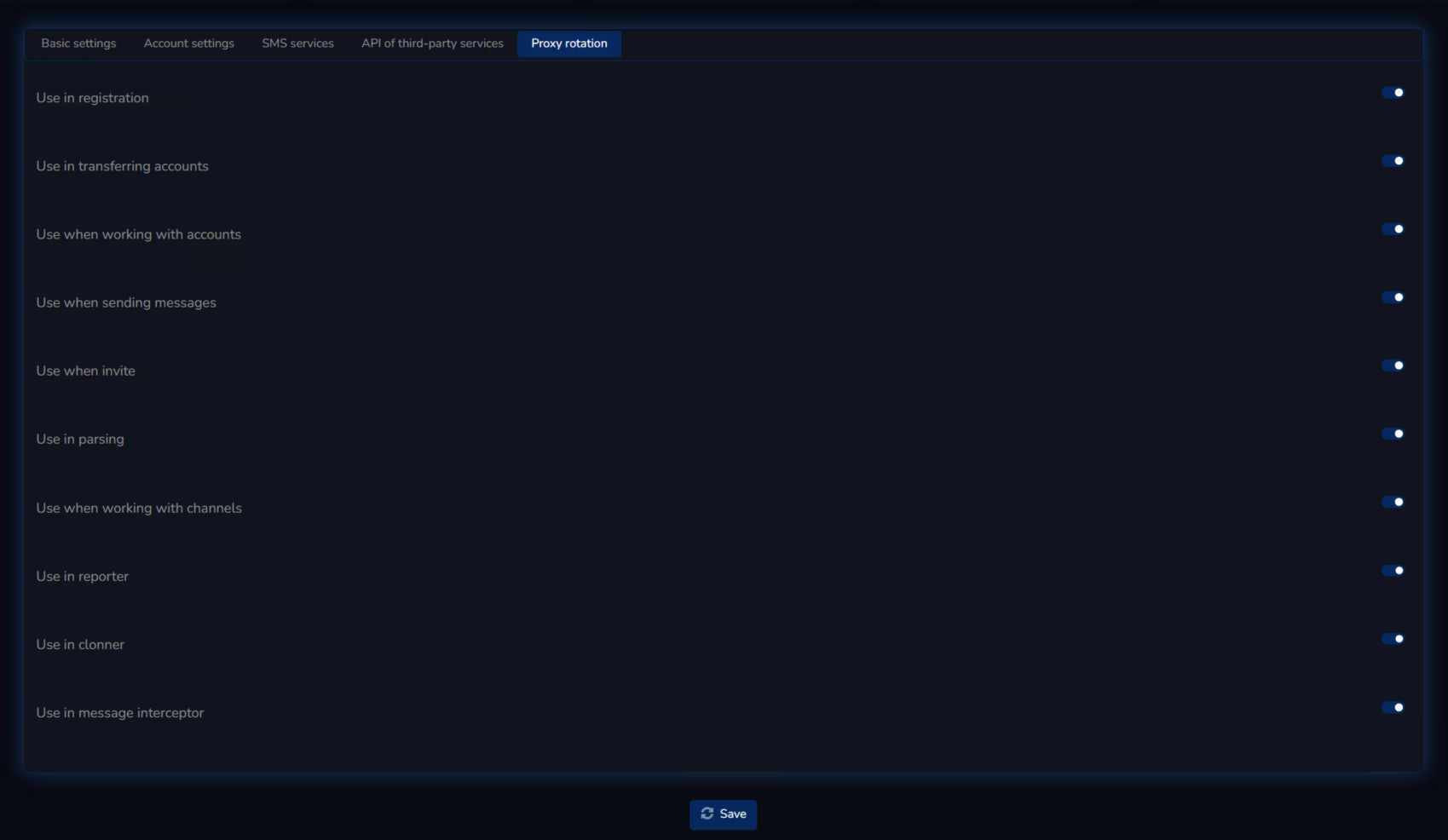
In it’s recent versions Telegram Prime allows you to choose which modules apply proxy rotation. This provides granular control over network behavior. You can enable IP rotation for high-load or high-risk operations while keeping a static IP in scenarios where connection stability and predictability are critical.
This approach creates a flexible and controlled proxy architecture for working with Astro infrastructure, allowing users to define the balance between rotation dynamics, session stability, and overall system performance.
